Using Advanced Editor
The Advanced Editor for email message creation accepts HTML content that is often prepared using other tools or coded manually. If the HTML is accessible when pasted or typed into the Advanced Editor, it will remain accessible when the message is sent.
Advanced Editor (as well as Content Designer) also includes AI that can simplify message language.
Using Content Designer
Content Designer is Cheetah Digital’s drag and drop content creation tool. It includes a variety of features to help you quickly and easily create accessible email content. Currently, it can be used to create content for HTML emails, AMP emails, and content blocks for both emails and web pages.
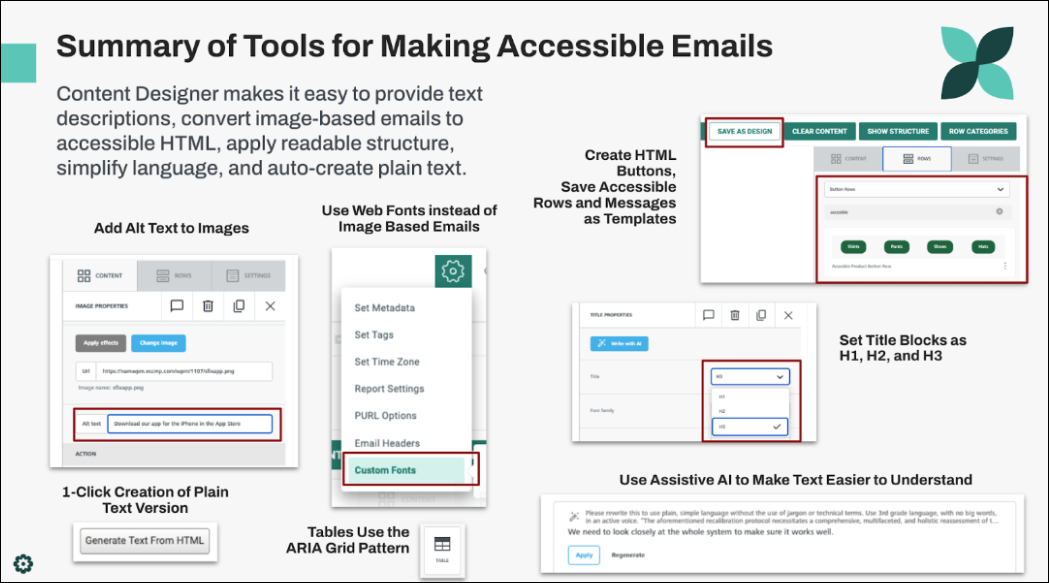
A summary of available tools in Content Designer:
Providing text alternatives
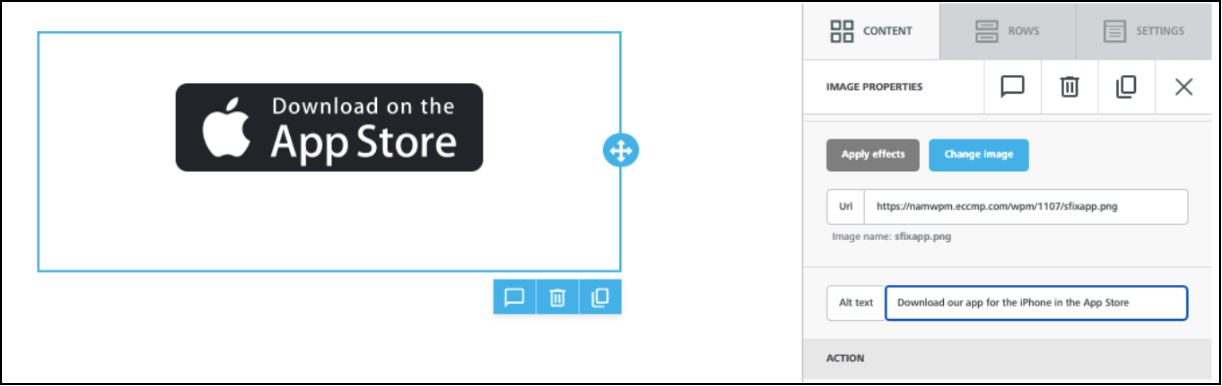
You may be required to provide text alternatives for any non-text content, such as images. These alternatives should convey an equivalent meaning or purpose. Content Designer supports this through the use of alt tags, custom web fonts to match branding, and HTML buttons, as shown below.
Adding Alt tags
Options to Not Need to Use Image Based Emails
If you're using image-based emails because your brand fonts aren't supported by standard browsers, consider using custom web fonts in Content Designer. This allows you to stay on-brand without relying on text embedded in images.
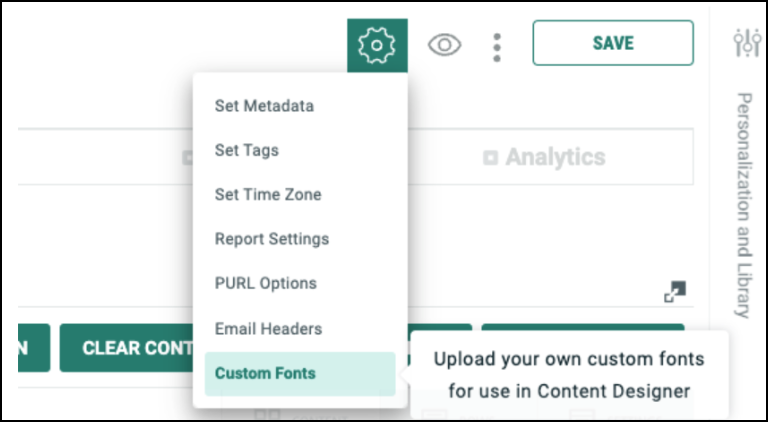
For more information, see the User Guide: Using Web Fonts to Stay On-Brand.
In addition, Content Designer provides tools for responsive design, padding, and a variety of layout options that make it possible to closely recreate image-based emails using accessible design practices.
Stylish Accessible Buttons
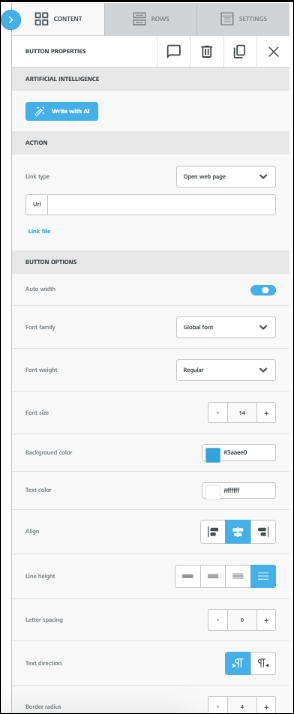
If you're using images for buttons, consider creating accessible HTML buttons in Content Designer, which can be styled as needed. These are commonly referred to as 'bulletproof buttons.'
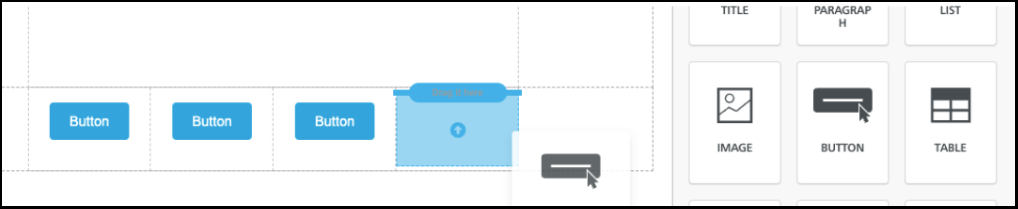
Styling Options for Accessible Buttons
Accessible content structure
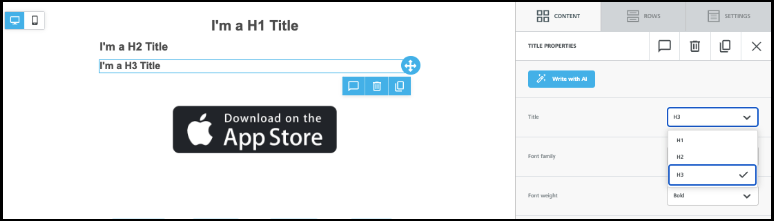
Some rules may require adequate content structure, including the use of properly nested headings (H1, H2, H3). You may need to logically organize your content to meet these requirements.
Content Designer supports headings through the Title block, which allows you to set titles as H1, H2, or H3. This method is preferred for accessibility, rather than relying solely on font size.
Accessible tables
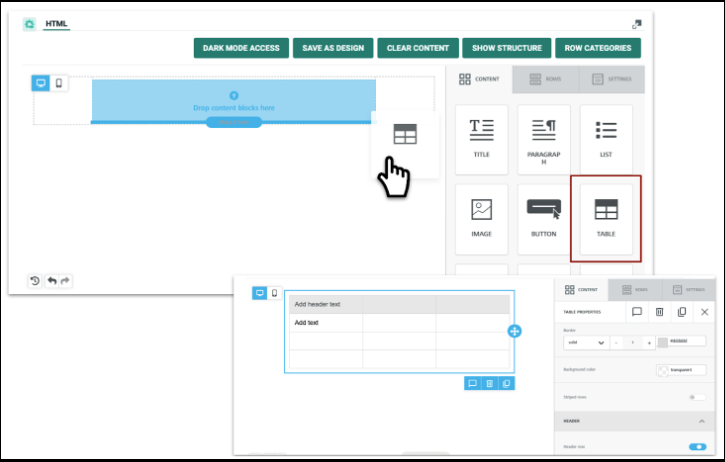
You can create tables in Content Designer. These tables automatically follow the ARIA Grid pattern for accessibility, including support for text navigation and screen readers.
Learn more about the ARIA Grid pattern here.
Providing clear, easy to understand language
Additionally, you may be required to present information about products or services using plain language, avoiding technical jargon or complex terms.
Both Content Designer and the Advanced Editor include Assistive AI to help you achieve this. If Assistive AI is not currently activated in your account, contact your Zeta representative to enable it for you, it is included with your service.
Let’s ask Assistive AI to make a text compliant with the following prompt.
Prompt: Please rewrite this to use plain, simple language without the use of jargon or technical terms. Use 3rd grade language, with no big words, in an active voice. “The aforementioned recalibration protocol necessitates a comprehensive, multifaceted, and holistic reassessment of the extant system architecture to ensure optimal operational efficacy."
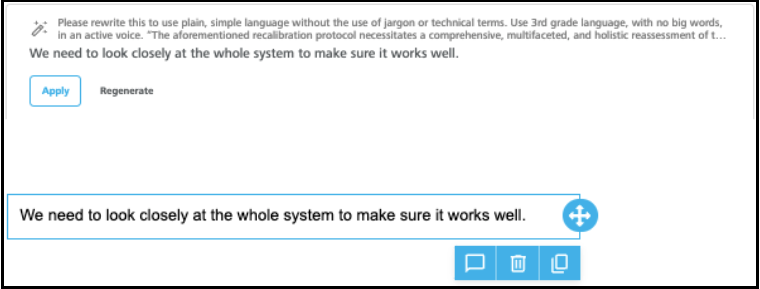
The result, using AI generated plain, simple language without the use of jargon or technical terms: "We need to look closely at the whole system to make sure it works well."
Save and reuse, make accessibility the standard
After building your accessible elements, use them as templates. This saves time, and also sets your teammates up for success when they are creating a Campaign.
-
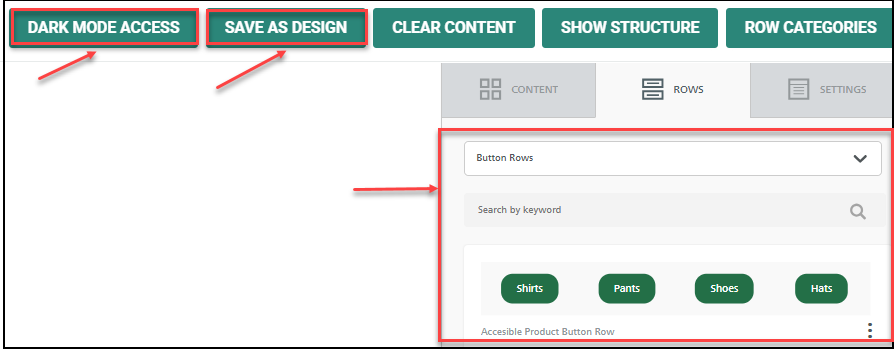
Any row with accessible elements can be saved and reused as a row template
-
Any message can be saved as a design, and reused later as a design template
-
When you create a template, ensure you are using accessible color contrasts for text and background. Also, check the template using the Content Designer Dark Mode preview to help you identify the elements that lose text visibility.
Automatic conversion to plain text
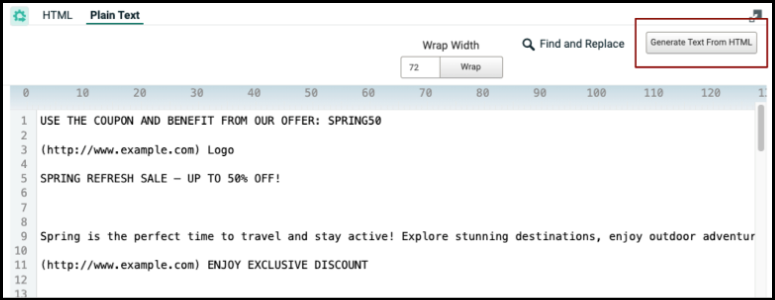
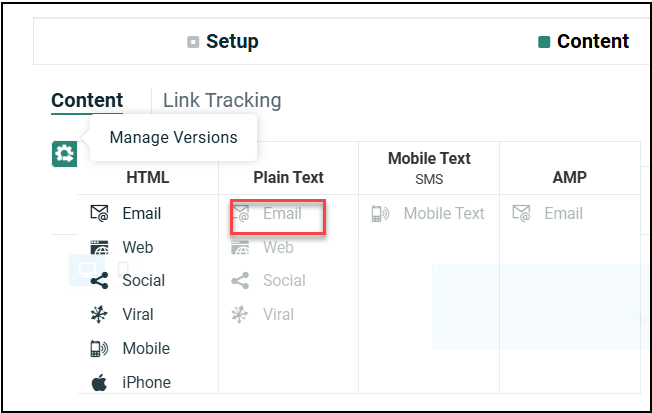
If needed, you can create a plain text version of your email Campaign content by using the automatic plain text conversion option available in both Content Designer and Advanced Editor.
-
Enable Plain text version in your Campaign.
-
In the Plain Text tab, click Generate Text from HTML. The text in the HTML version is converted and available in plain text format for further edits as required.